How to Empty Trash on iPhone: Complete Guide (2025)

If your iPhone is running low on storage or slowing down, clearing unnecessary files is a great way to boost performance. But many users don’t realize that when they delete photos, videos, notes, or messages, they aren’t removed instantly. Instead, they stay inside a Recently Deleted or Trash folder for several days. In this guide, you’ll learn how to empty trash on iPhone across different apps so you can free up space quickly and safely.


1. How to Empty Trash in Photos App

Photos and videos take up a significant amount of storage. Even after deleting them, they stay in the Photos app’s “Recently Deleted” folder for 30 days.
Follow these steps:

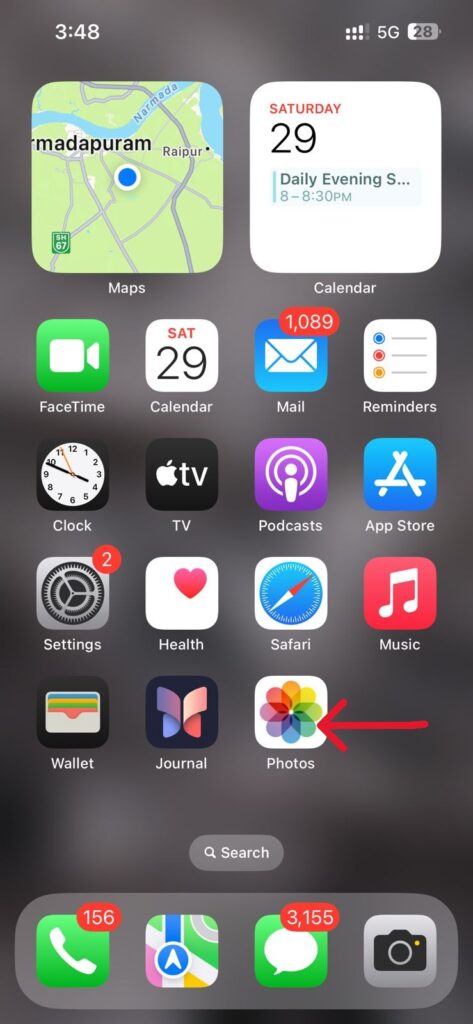
     1. Open the Photos app.

how-to-empty-trash-on-iPhone

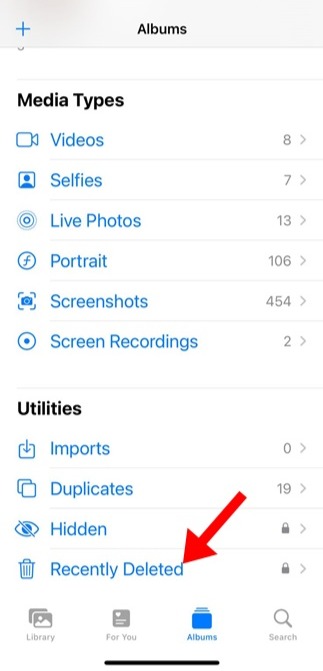
     2. Tap Albums at the bottom.

     3. Scroll down and choose Recently Deleted.

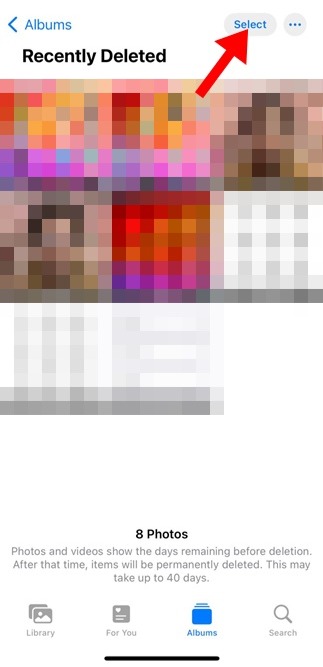
     4. Tap Select in the top-right corner.

     5. Choose the photos to remove permanently.
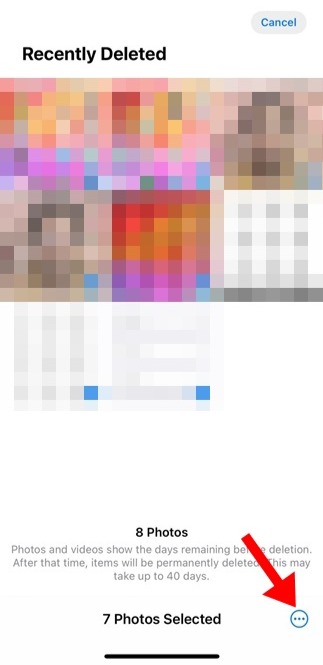
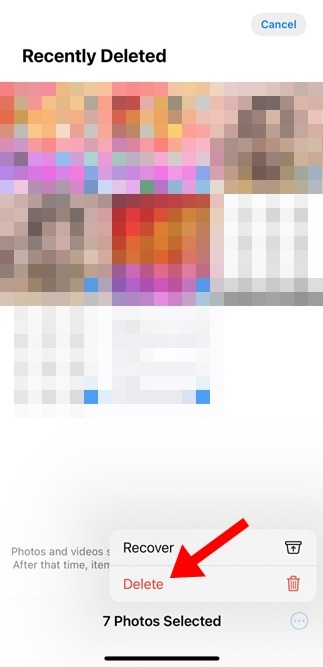
     6. Tap the three dots at the bottom.

     7. Select Delete to clear them forever

2. How to Clear the Files App Trash

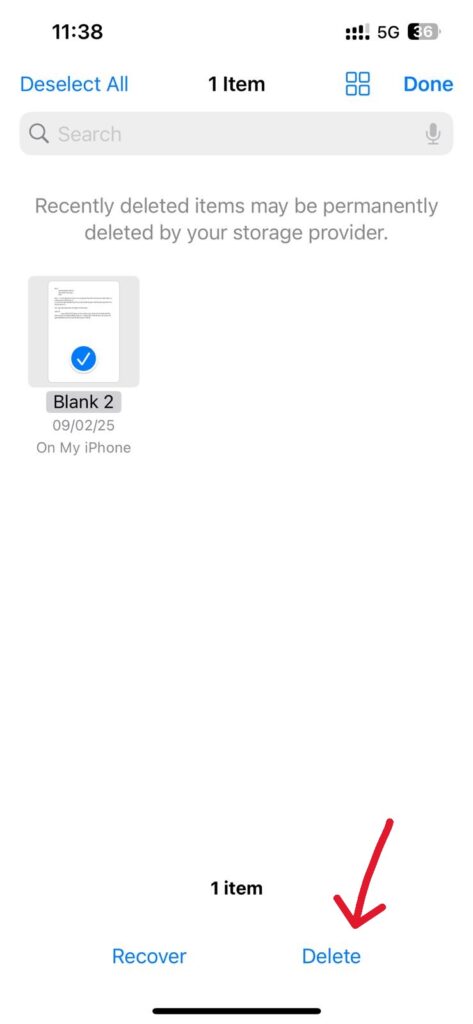
Documents like PDFs, ZIP files, and downloads remain in the Files app’s trash even after deletion. To free up storage, clear them from the Recently Deleted section.
Steps:

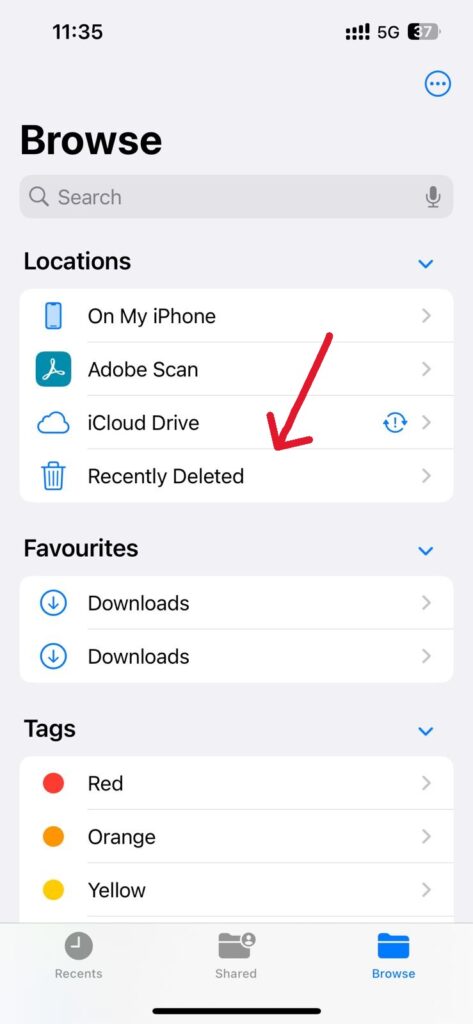
     1. Open the Files app on your iPhone.

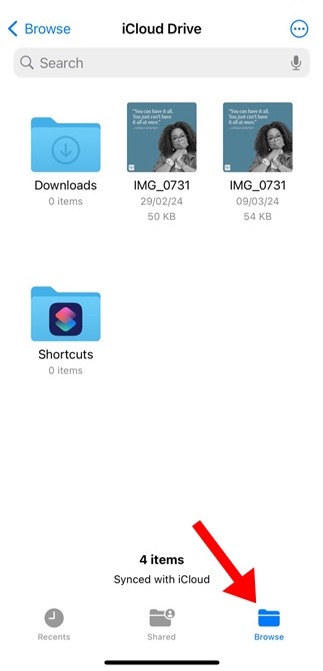
     2. Tap Browse in the bottom menu.

     3. Select Recently Deleted.

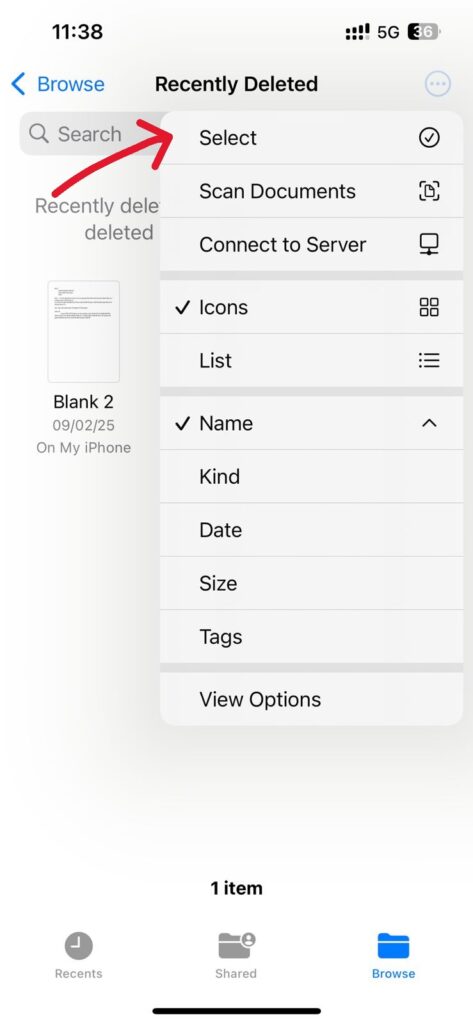
     4. Tap the three dots in the top-right corner.

     5. Choose Select.

     6. Select the files you want to Delete.

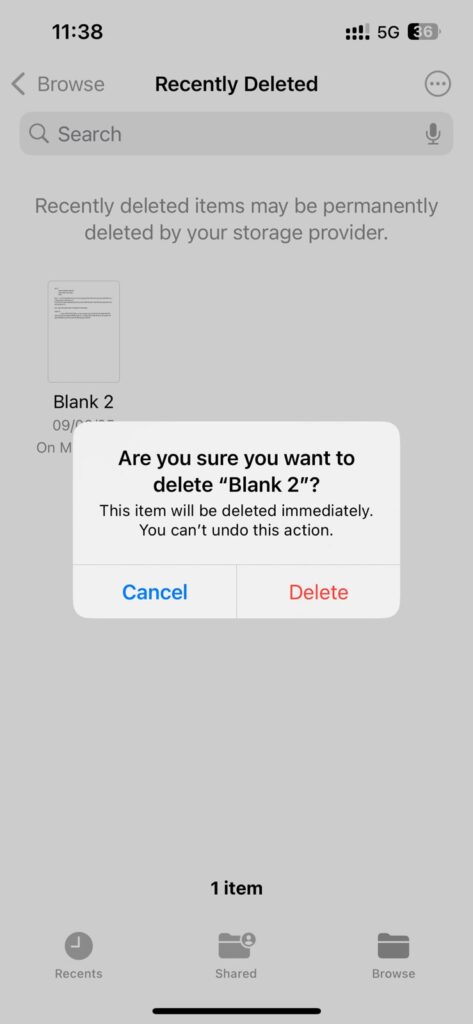
     7. Tap Delete, then confirm by tapping Delete again.

3. How to Delete Trash in the Mail App

Deleted emails are moved to the “Bin” and stay there until you empty it manually.
Here’s how:

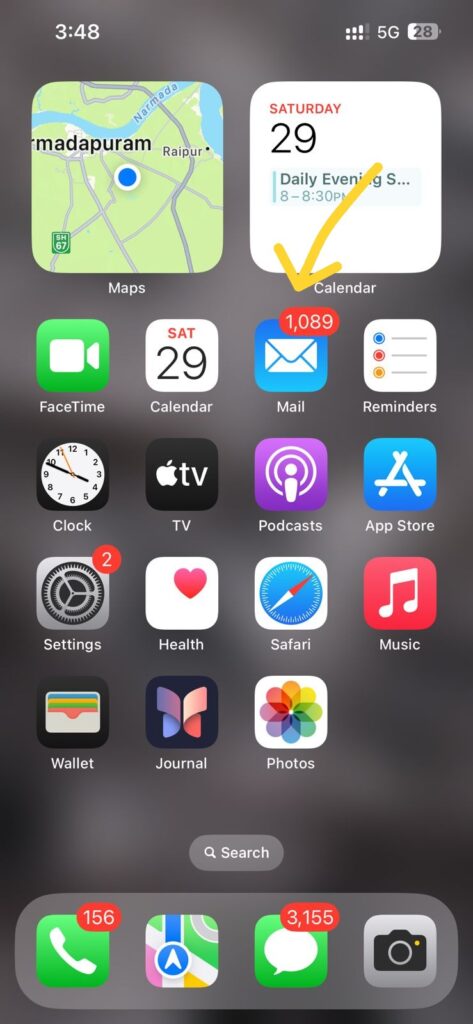
     1. Open the Mail app.
     2. Tap Mailboxes at the top-left corner.

     3. Select Bin.

     4. Tap Edit.

     5. Choose the emails you want to Delete.

     6. Tap Delete and confirm with Delete All.

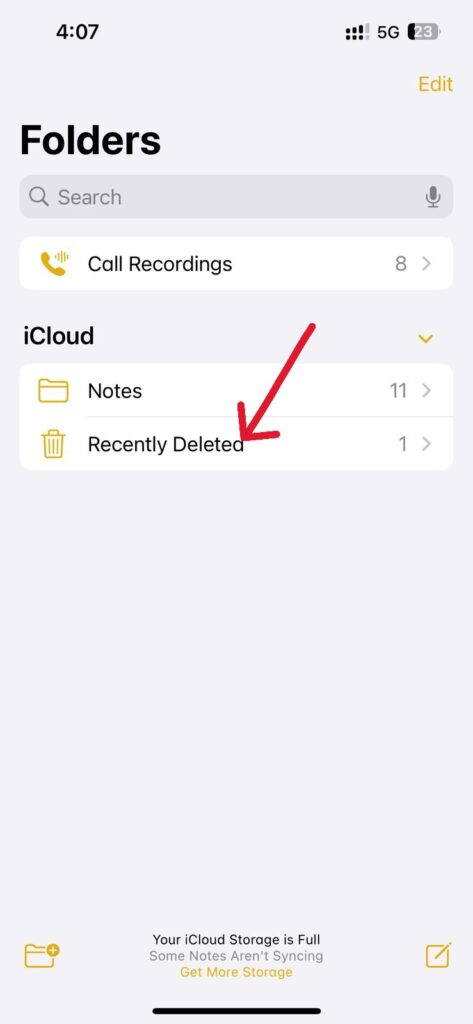
4. How to Empty Recently Deleted Notes

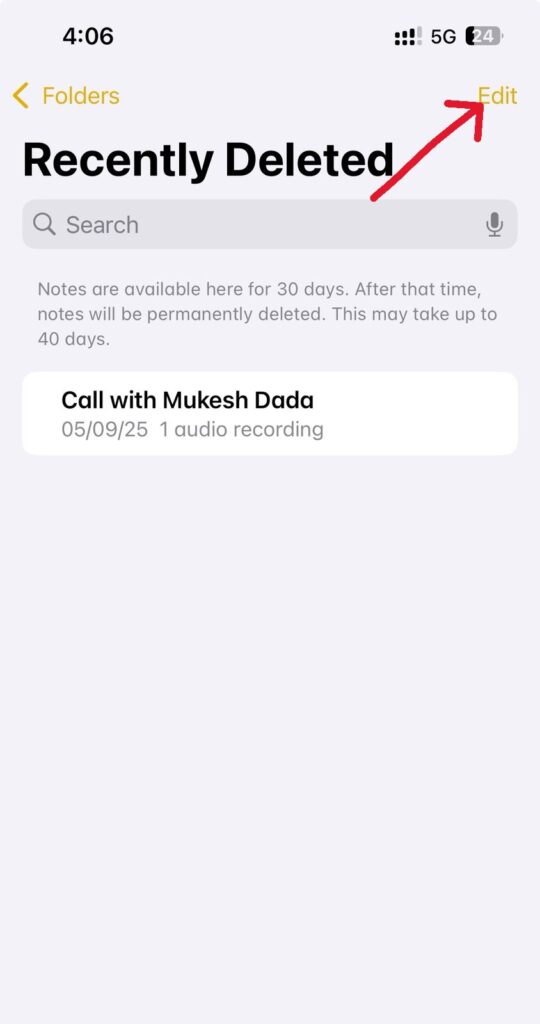
Notes you delete are stored in the Recently Deleted folder for up to 30 days. Removing them helps create more space.
Steps:

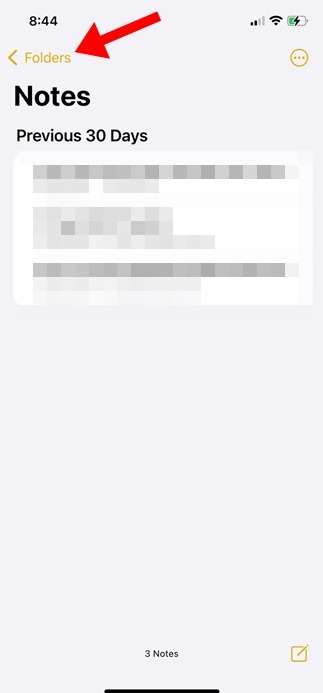
     1. Open the Notes app.

     2. Tap Folders in the top-left corner.

     3. Choose Recently Deleted.

     4. Tap Edit.

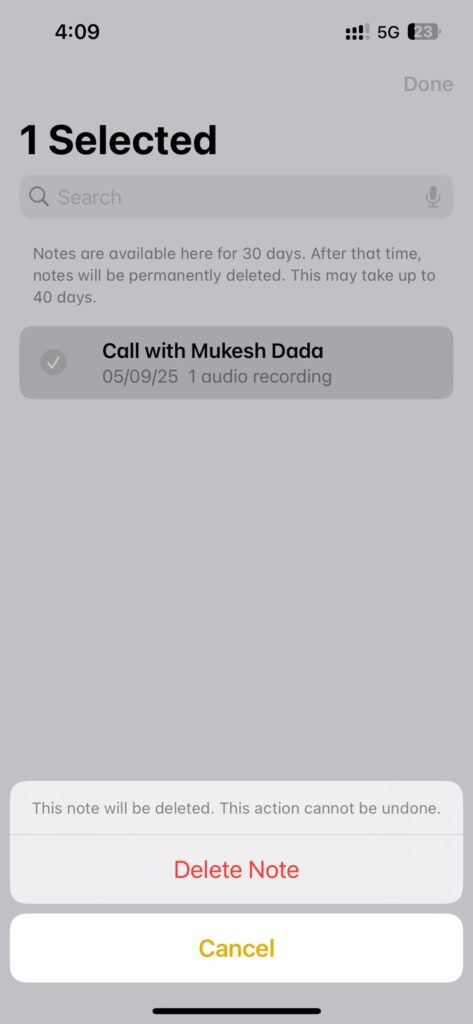
     5. Select the notes to Delete.

     6. Tap Delete All and confirm.

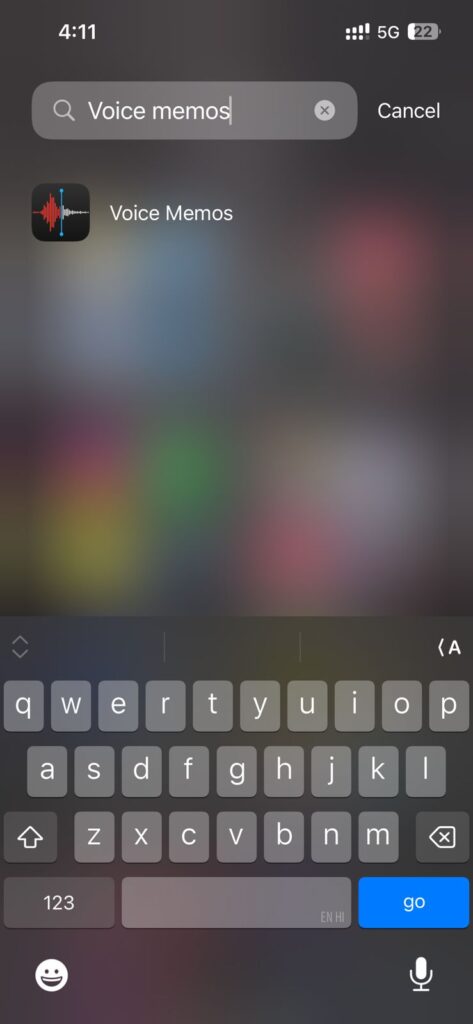
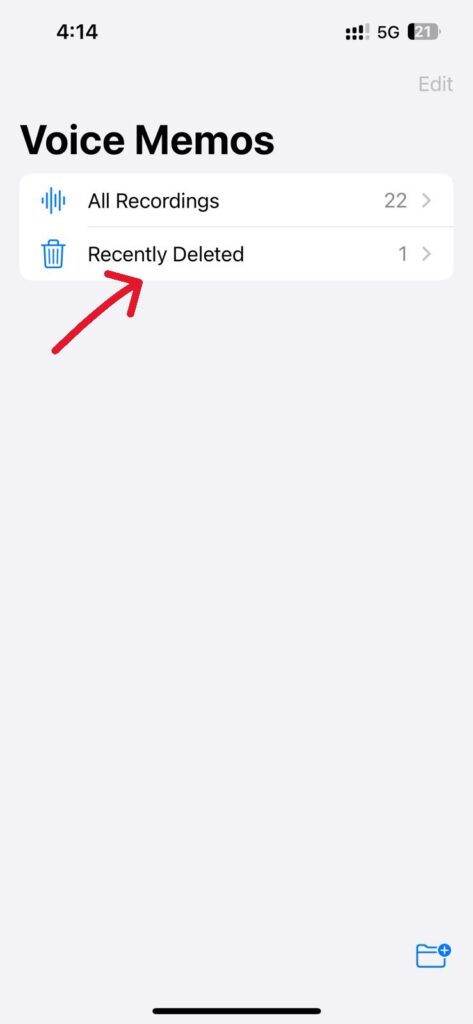
5. Clear the Voice Memos App’s Recently Deleted Folder

Deleted recordings also remain stored until you remove them permanently. To empty: Open Voice Memos.

     1. Tap the arrow icon in the top-left corner.

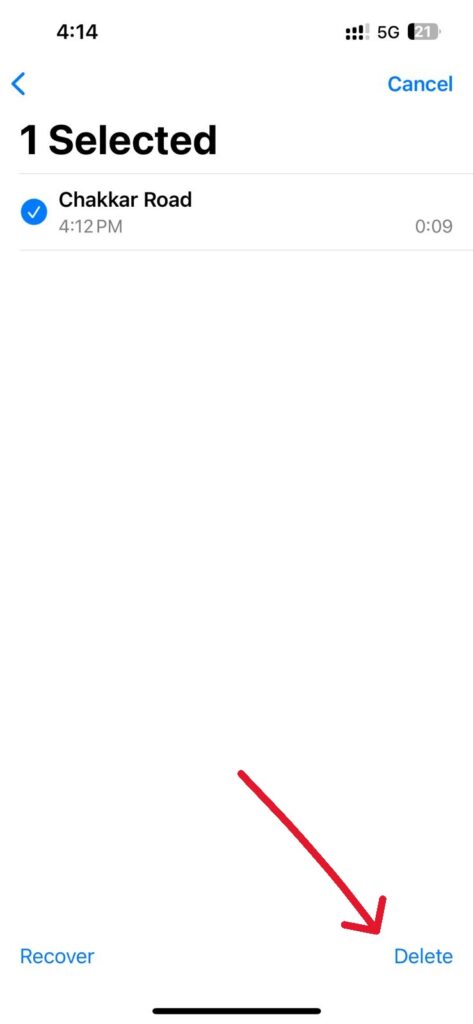
     2. Select Recently Deleted.

     3. Tap Edit.

     4. Choose the memos to delete.

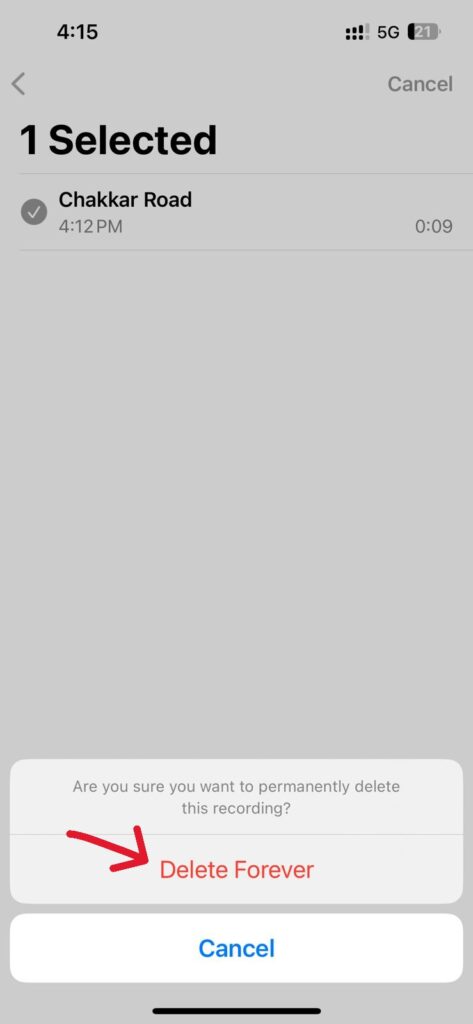
     5. Tap Delete, then Delete Forever.

6. Delete Trash in the Messages App

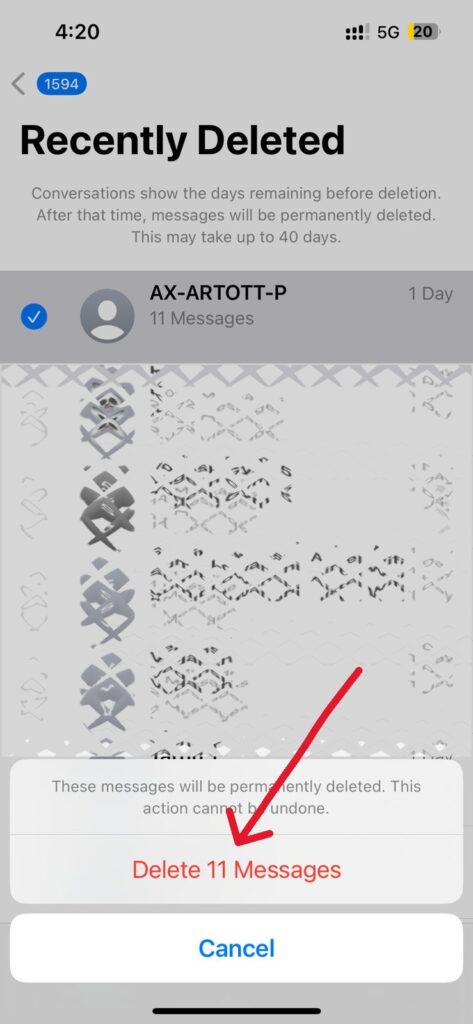
Deleted iMessage and SMS conversations stay in the Recently Deleted folder for 40 days.
To clear them:

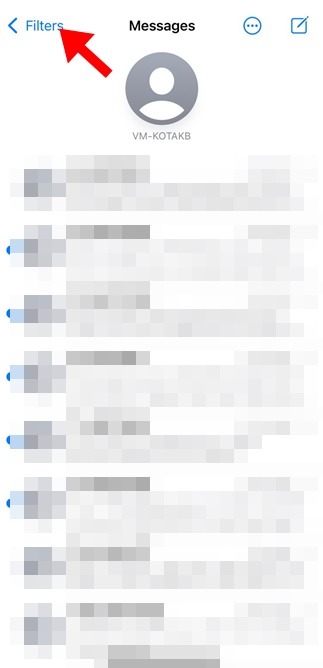
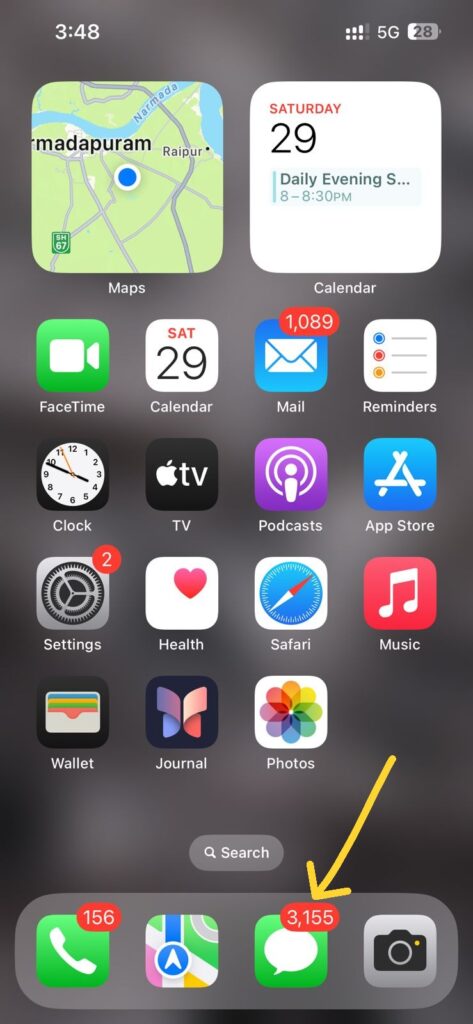
     1. Open the Messages app.

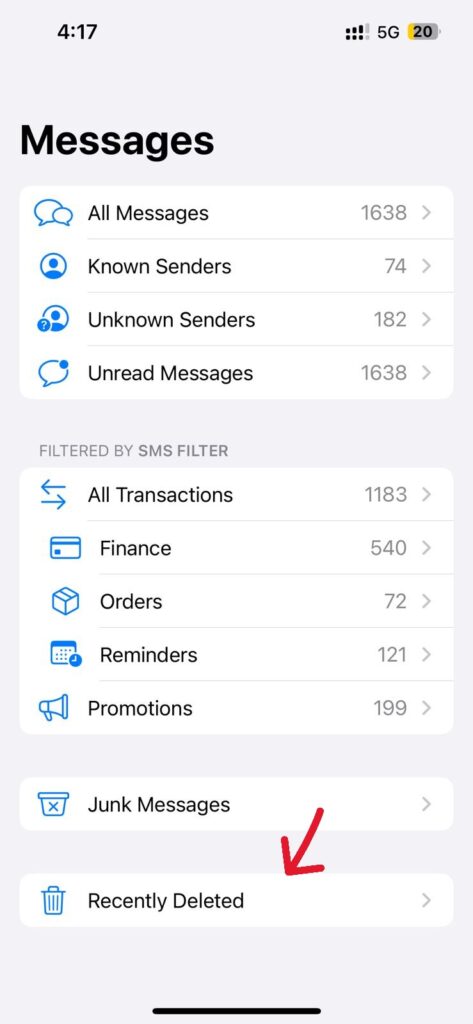
     2. Tap Filters at the top.

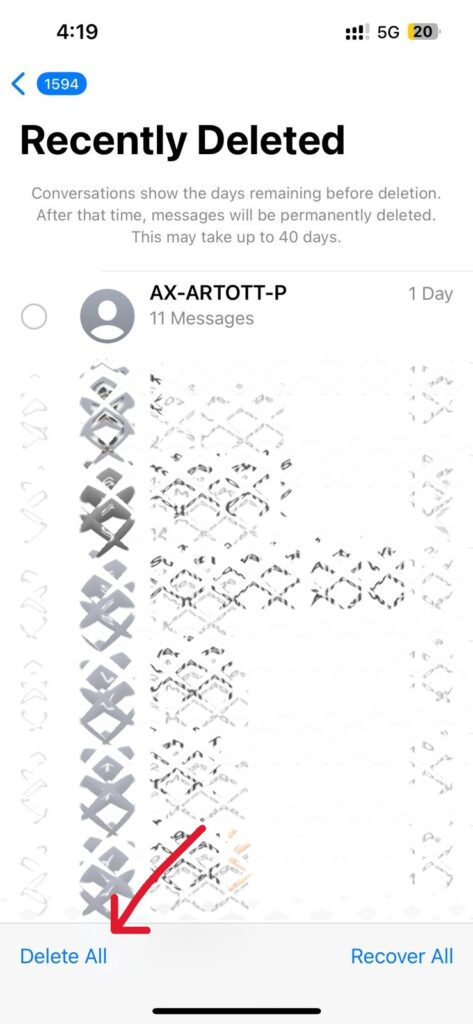
     3. Select Recently Deleted.

     4. Tap Delete All.

     5. Confirm by tapping Delete Messages.

Once you know how to empty trash on iPhone, clearing unwanted files becomes quick and easy — helping you recover valuable storage space and keep your device running smoothly.

FAQs

1. Why does my iPhone still show storage full even after deleting files?
Because deleted items remain in the Recently Deleted folder and still take up space. Empty the trash in Photos, Files, Messages, Notes, and other apps to free space. 

2. Does the iPhone have a single trash folder for everything?
No. Each app (Photos, Files, Notes, Mail, Messages, Voice Memos) has its own trash or Recently Deleted section.

3. How long does the iPhone keep deleted items?
Typically 30 days, but Messages keeps deleted items for 40 days.

4. Will emptying trash permanently delete files?
Yes. Once you clear items from the Recently Deleted folder, they cannot be recovered unless you have a backup.

5. How often should I empty trash on iPhone?
If your storage is limited, clearing trash once a week helps keep your device running smoothly.

Exit mobile version